If the page is written in the general way of HTML, pressing the Speech button will highlight the text being read out loud and auto-scroll as it is read out loud.
Speech Control
You can move back and forth between the text being read (Prev, Follow), and stop the reading with Stop.

You can zoom in on the text being read out loud and check the text from a distance from the display. (The caption screen can be erased by itself or by clicking the caption button.)

When you press the Share button, a window with SNS buttons will appear and disappear automatically after 30 seconds. During this time, press the SNS button in the window to spread the message.

When the control bar gets in the way of the screen, press the triangular button on the right edge, and it will become an icon button on the right edge of the screen, becoming smaller and less obtrusive. To bring it back again, click on the icon.
Click the X: Close button on the far left to completely erase the control bar. On some high security pages, such as the login screen of a financial institution, just adding an object to the screen is considered an abnormal program. To show it again, click on the icon of this FLOW PAGE extension in the upper right corner of the browser window.

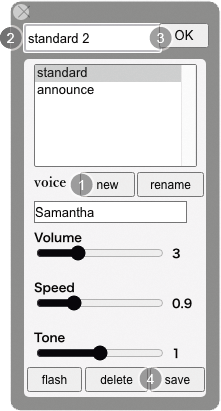
The Pref button on the far left allows you to adjust the voice to be read. You can adjust the voice height (Tone), reading speed (Speed), and volume. Then, when you have found an adjustment you like, press 1) new, 2) enter the name of the setting, 3) press ok, and 4) press save, and the setting will be saved and spoken as it is.